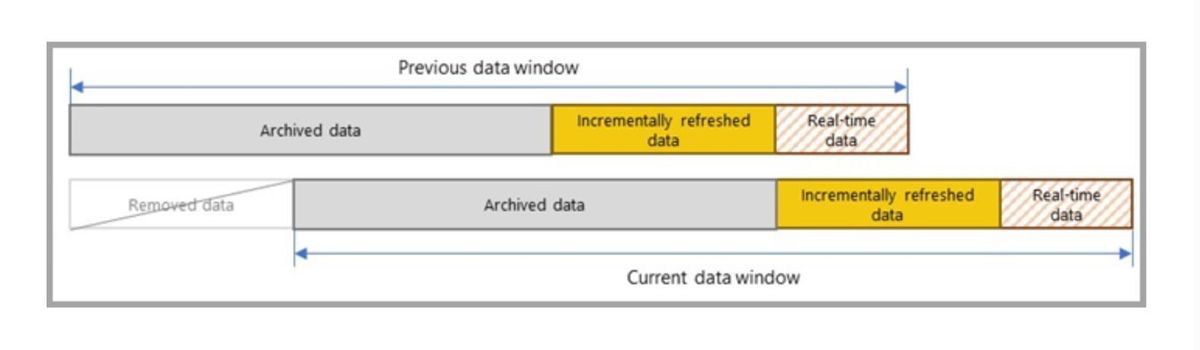
Incremental refresh lets Power BI reload only the recent data that can still change, so a refresh that took an hour can take minutes. Here is how it works, what licence and data source it needs, how to set it up, and the mistakes that quietly undo it.
If your Power BI dataset takes an hour to refresh, most of that hour is spent reloading sales from 2021 that have not changed since 2021. Incremental refresh stops that. Power BI reloads only the recent slice of data that can still change and keeps the history it already holds. Done well, an hour-long refresh can come down to a few minutes, the source system gets a much lighter load, and the refresh stops failing at month end.
This guide covers what incremental refresh is, when it is worth setting up, what licence and data source it needs, how to configure it, and the mistakes that quietly undo it.
What does incremental refresh do in Power BI?
Incremental refresh splits a large table into date-based partitions. Older partitions hold history that no longer changes, so Power BI leaves them alone. Only the most recent partitions are reloaded on each refresh. You define the split with a refresh policy, for example "keep five years of history, reload the last ten days".
Power BI then manages the partitions for you. As time moves on, new days are added, older days are merged into months and years, and anything older than the history you asked for drops off the end. Microsoft calls this a rolling window.
The result is a refresh that touches thousands of rows instead of millions. That means faster refreshes, less load on the source database and the gateway, and more headroom on your capacity.
When do you need incremental refresh?
Not every model needs it. A model with a few hundred thousand rows refreshes quickly enough as it is, and incremental refresh adds complexity you then have to maintain. It earns its place when one or more of these is true:
- Refreshes take long enough that people notice, or they get close to the refresh time limit (2 hours on Power BI Pro, 5 hours on Premium or Fabric capacity).
- Refreshes fail intermittently, usually on the biggest fact table and usually when the source system is busy.
- The source database team has asked you to stop pulling millions of rows every morning.
- You want to refresh several times a day, and a full reload makes that impossible.
- The model is large enough to strain capacity memory, because a full refresh can need up to double the model's memory while it runs.
The typical candidates are transaction tables: sales lines, general ledger entries, stock movements, timesheets and web events. Dimension tables such as customers and products are usually small enough to reload in full.
What do you need before you start?
Incremental refresh is available on Power BI Pro, Premium per user, Premium capacity, Fabric capacity and Power BI Embedded. You do not need Premium to use it. Premium or Fabric capacity adds the extras: the real-time DirectQuery partition, the XMLA endpoint for managing partitions, the longer refresh limit and the large semantic model storage format.
The data source matters more than the licence. Incremental refresh works best on relational sources such as SQL Server, Azure SQL Database, a Fabric Warehouse or Lakehouse SQL endpoint, Azure Synapse and Oracle. The table needs a date or date/time column to filter on, and the filter has to fold back to the source. If it cannot fold, Power BI pulls every row and then filters it locally, which removes the benefit entirely.
Files in folders, SharePoint lists and web APIs can be made to work, but they need custom handling and careful testing. If your data sits in a business system such as Business Central, it is usually better to land it in a database or Fabric first and refresh incrementally from there.
How do you set up incremental refresh?
The setup happens in Power BI Desktop, and the partitions are created when the model first refreshes in the service.
- Create two parameters. In Power Query, create date/time parameters called exactly RangeStart and RangeEnd. The names are reserved and case-sensitive.
- Filter the table. Add a filter on your date column that keeps rows on or after RangeStart and before RangeEnd. Use "greater than or equal to" on one side and "less than" on the other, or rows on the boundary will load twice or not at all. If the date is stored as an integer such as 20261214, convert the parameters to match.
- Check it folds. Right-click the filter step and choose View Native Query. If the option is greyed out, the filter is probably not folding and needs moving earlier in the query.
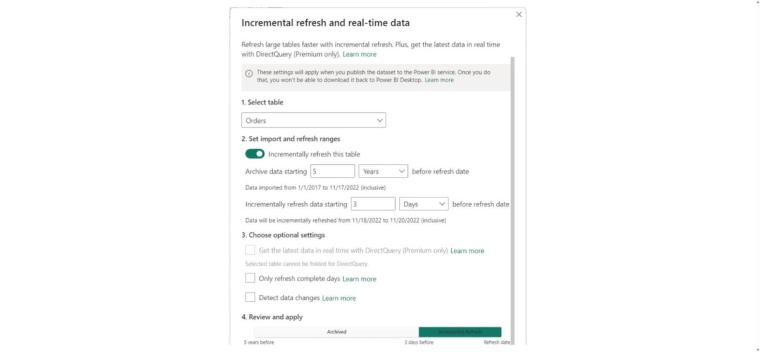
- Define the policy. Right-click the table, choose Incremental refresh, and set how much history to keep and how much to reload each time.
- Publish and run the first refresh by hand. The first refresh loads all the history and builds the partitions, so it is slow. Run it manually and watch it. Every refresh after that only touches the recent partitions.
Which policy settings matter?
Four settings decide how well the policy works.
Archive period. How much history to keep. Match it to what the business actually reports on. Keeping ten years "just in case" costs memory and refresh time on every full rebuild.
Incremental period. How far back to reload each time. Make it cover the window in which data can still change. If invoices can be amended for 30 days after posting, a 3-day window will leave stale numbers in your reports. If nothing changes after a week, 60 days is waste.
Detect data changes. If the table has a "last modified" column, Power BI can check each partition and skip the ones that have not changed. This must be a different column from the one you partition on. It can cut a refresh down further, but only if the source updates that column reliably.
Only refresh complete days. This waits until a day is finished before loading it. It is useful where a partial day would mislead, and it is required if you add a real-time DirectQuery partition.
What mistakes undo incremental refresh?
- Republishing from Desktop. Publishing the .pbix again replaces the partitions and their data, and the next refresh starts from scratch. On Premium or Fabric capacity, use deployment pipelines, Tabular Editor or the ALM Toolkit to push metadata changes without wiping the data.
- Expecting to download the .pbix. Once incremental refresh is applied in the service, you cannot download the model back to Desktop. Keep the source file under version control, ideally as a PBIP project in Git.
- A filter that does not fold. A custom column, a merge or a type change before the date filter can stop folding. Everything still works, slowly, and nobody notices until the source team does.
- The wrong date column. Partitioning on order date when lines are back-posted against old dates means late changes land in partitions that never reload.
- Time zones. The service refreshes in UTC unless you set a time zone. For a UK business, a "yesterday" window can be an hour out for half the year.
- Using it to cover a poor model. If a refresh is slow because of heavy Power Query steps or a model that loads columns nobody uses, fix that first. Incremental refresh makes a good model faster. It does not make a poor one good.
Is incremental refresh still relevant in Microsoft Fabric?
Yes, but Fabric gives you more options. Dataflow Gen2 has its own incremental refresh, which loads only changed data into a destination such as a Fabric Warehouse, Lakehouse or Azure SQL Database. It needs a Fabric capacity. Pipelines and notebooks can also load data incrementally into a lakehouse.
Once the data sits in OneLake, a Direct Lake semantic model reads the Delta tables directly, so there is no import refresh to make incremental at all. For many mid-market businesses moving to Fabric, the better question is where the incremental loading should happen: in the semantic model, in the dataflow or in the data platform underneath. In our experience, the answer is usually as early in the chain as possible, so every report downstream benefits.
If your refreshes are slow or failing and you are not sure where the time goes, Hopton's free audit looks at your Power BI estate and tells you what to fix first. You can also read more about how we work on Power BI and Microsoft Fabric.
Related reading
- Why your Power BI report is slow, and the five things that usually fix it
- Direct Lake in Microsoft Fabric explained
- Git for Power BI: why every report developer should be using PBIP files
- Power BI Premium to Fabric capacity: the move and the bill
- When to use shortcuts, mirroring, pipelines or dataflows in Fabric
- Full load or incremental load: how to move only what changed
Maisie Hudson
Analytics Consultant
Part of the Hopton Analytics team, delivering governed analytics programmes for UK mid-market organisations.