
Copilot in Power BI answers from your semantic model, so the model decides whether the answers are right. How to use Prep data for AI, verified answers and AI instructions, the modelling habits that matter most, and the requirements to check first.
Copilot in Power BI is impressive in a demo and frustrating on a real model. Someone asks "what was gross margin last quarter?" and it picks the wrong column, sums a percentage or uses the order date when finance uses the invoice date. The model isn't broken. Copilot is just reading it literally.
The fix is mostly in the semantic model, not in Copilot. Here is what Microsoft gives you to prepare a model for AI, and the modelling habits that make the biggest difference.
What do you need before Copilot works in Power BI?
- Fabric capacity F2 or above, or Power BI Premium P1. Pro or Premium Per User on its own is not enough, and trial capacities don't count.
- The tenant setting turned on. "Users can use Copilot and other features powered by Azure OpenAI" has to be enabled by a Fabric admin.
- Cross-geo processing for UK tenants. Microsoft processes Copilot in the US or the EU Data Boundary. UK capacities need the cross-geo processing setting enabled to use the EU boundary.
- Q&A enabled on the semantic model, if you want to use the Prep data for AI features.
Copilot runs on capacity, so heavy use on a small F2 can slow other workloads. Watch the Fabric Capacity Metrics app in the first few weeks.
Prep data for AI: the three tools Microsoft gives you
Microsoft's Prep data for AI features, currently in preview, sit in Power BI Desktop and the Power BI service. There are three.
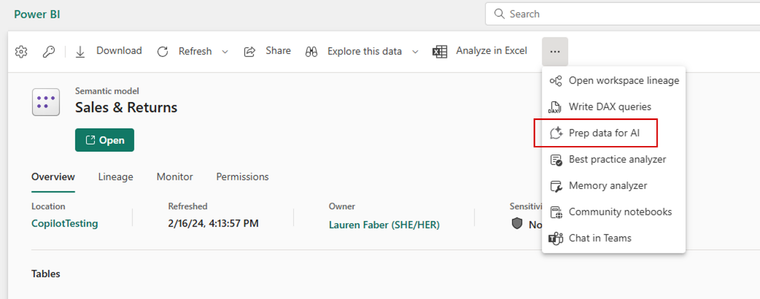
- AI data schema. Choose which tables, columns and measures Copilot should consider. Hide the technical keys, staging columns and old measures nobody uses. A smaller, cleaner schema gives better answers.
- Verified answers. Link common questions to a specific visual you trust. When someone asks "how are sales tracking against budget?", Copilot shows the approved answer rather than building its own.
- AI instructions. Plain-language guidance about your business: "Revenue means invoiced revenue excluding VAT", "Our financial year starts in October", "Use the Region hierarchy, not the old Area column".
Once a model is prepared, its owner can mark it as Approved for Copilot in the service. That reduces the caution Copilot applies in the standalone experience. It can take up to an hour to take effect, longer for models with many reports.
The modelling habits that matter most
Prep data for AI helps, but it can't rescue a messy model. These are the changes that make the biggest difference in our experience.
- Use a star schema. Fact tables for transactions, dimension tables for customers, products, dates and regions. Copilot, like people, struggles with one wide flat table.
- Write explicit measures. Create a measure for every number people ask about, such as Revenue, Gross Margin %, Orders. Don't leave Copilot to sum a column or average a percentage.
- Name things the way the business talks. "Customer Name", not "CUST_NM". "Invoice Date", not "Date2". Add descriptions to tables, columns and measures. Copilot reads them.
- Have one date table, marked as a date table. Then "last quarter" and "year to date" mean the same thing every time.
- Remove duplicates of meaning. Two revenue measures with slightly different logic will eventually produce two different answers. Keep one and describe it.
- Set row-level security properly. Copilot uses each person's permissions. If row-level security is missing, people can ask for figures they shouldn't see.
How to test it
Write 15 to 20 real questions your finance and operations teams ask, with the right answers taken from reports they already trust. Ask Copilot each one. Use "How Copilot arrived at this" to see what it used when it gets one wrong, then fix the model, description or instruction and test again. Keep the list. When Microsoft changes the model underneath, run it again. We explain why in Claude Fable 5.2 is in Copilot.
Why this is worth doing now
The same semantic model feeds Copilot in Power BI, Fabric data agents, Copilot Studio agents and, increasingly, Microsoft 365 Copilot. Prepare it once and every AI experience gets better. It's also the best defence against AI giving three different answers to the same question. That's what a semantic layer is for.
If you want help getting a model ready for Copilot, or a review of one that's giving odd answers, get in touch or see our Power BI services.
Sources: Microsoft Learn, Prepare your data for AI to improve Copilot results (preview) and Copilot for Power BI overview, 2026.
Related reading
- Fabric data agents: what they are and how to set one up
- What a semantic layer is, and why AI needs one
- Can a CFO sign off a number that AI produced?
- Direct Lake in Microsoft Fabric explained
Maisie Hudson
Analytics Consultant
Part of the Hopton Analytics team, delivering governed analytics programmes for UK mid-market organisations.