
Microsoft 365 Copilot respects permissions, which is exactly the problem: it finds everything a person can already open. How to find oversharing in SharePoint and Teams, the Microsoft tools that help, and a practical order of work before rollout.
Microsoft 365 Copilot doesn't give anyone access to anything new. It only works with what each person can already open. That sounds reassuring until you remember how most businesses have set up SharePoint and Teams over the years: sites shared with everyone, folders shared by link and never revoked, a salary spreadsheet sitting in a team site that 200 people can technically open.
Nobody went looking before. Copilot does the looking for them. Ask it to summarise recent pay discussions or the board's view of a restructure and it will find whatever the user has rights to. That's oversharing, and it is the most common reason Copilot rollouts stall.
What is oversharing in Microsoft 365?
Oversharing is when people have access to content they don't need for their job. It usually comes from a few habits:
- Sites and Teams set to public, or shared with Everyone except external users.
- Files shared with "anyone in the organisation" links that never expire.
- Old project sites that nobody owns any more, with access nobody has reviewed.
- Broken permission inheritance, where one folder has very different rights from the site around it.
- Sensitive documents with no sensitivity label, so nothing stops them being found or copied.
None of this is new. Copilot just makes it visible very quickly.
Microsoft's blueprint for securing Copilot
Microsoft publishes a deployment blueprint for securing and governing Copilot. It has three parts: remediate oversharing, set up guardrails, and meet regulations. The order matters. You reduce exposure quickly first, then put defaults in place so the problem doesn't come back, then close any regulatory gaps.
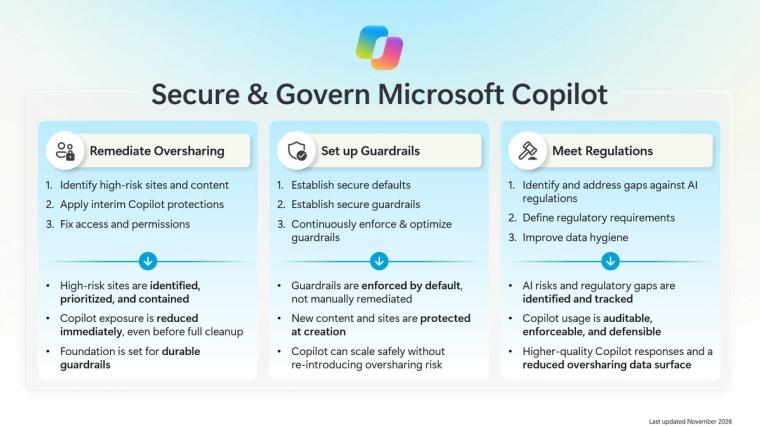
Two toolsets do most of the work. SharePoint Advanced Management, which Microsoft says is included with Microsoft 365 Copilot licences, covers sharing, access and site governance in SharePoint. Microsoft Purview covers sensitivity labels, data loss prevention, insider risk and auditing, for Copilot itself and for the content it reads.
A practical order of work
This is the sequence we use with clients. Most mid-market businesses can get through the first four steps in a few weeks.
- Find the high-risk sites. Use the data access governance reports in SharePoint Advanced Management to list sites shared with everyone, sites with many "anyone" links and sites with the most sensitive content. Start with HR, finance, legal and the board.
- Restrict quickly where you have to. Where a site is clearly overshared and can't be fixed this week, restrict access to a named group or stop it appearing in Copilot and organisation-wide search with Restricted Content Discovery. These are temporary measures while you fix the underlying access.
- Give every site an owner. Sites with no owner never get reviewed. Assign one, then run site access reviews so owners confirm who should have access.
- Fix the sharing defaults. Change the default sharing link to specific people, set expiry on anyone links, and stop new sites defaulting to public.
- Label sensitive content. Apply sensitivity labels to the categories that matter, such as HR, payroll, board and client contracts, and use Purview data loss prevention to stop labelled content being processed or shared where it shouldn't be.
- Watch what Copilot is used for. Purview auditing and its AI security views show which content Copilot touched and whether sensitive data appeared in prompts or responses.
How long does Copilot readiness take?
It depends on the estate, not the number of users. A business with a few well-run Teams can be ready in two to four weeks. One with ten years of file shares migrated into SharePoint without a tidy-up takes longer. The good news is you don't need perfection to start. You need the high-risk areas closed and owners in place, then you roll out to a pilot group while the clean-up continues.
Don't forget the data Copilot reads in Power BI and Fabric
Oversharing isn't only a SharePoint problem. Copilot in Power BI and Fabric data agents use each person's own permissions on semantic models, lakehouses and warehouses. If row-level security isn't in place, a sales manager can ask for figures for regions that aren't theirs and get an answer. Our posts on row-level security and Fabric governance cover the data side.
Where we help
We help businesses get their data and reporting estate ready for Copilot: permissions on the data that matters, semantic models with proper security, and governance that holds up after rollout. If you want a second pair of eyes before you buy licences, get in touch or start with a free data assessment. Our Copilot cost guide covers the licence side.
Sources: Microsoft Learn, Secure and govern Microsoft Copilot: foundational deployment guidance, updated November 2026.
Related reading
- What does Microsoft 365 Copilot cost in the UK?
- AI, your data and UK data protection: what a leader needs to get right
- Row-level security done right
- Microsoft Fabric governance in 2026: OneLake catalog, Policies and access audit
Shauna Duffy
Director of Professional Services
Part of the Hopton Analytics team, delivering governed analytics programmes for UK mid-market organisations.